Install GVUL
One installer and your Mac password. No Terminal. During the beta, macOS asks you to confirm GVUL once more.
Open the installer
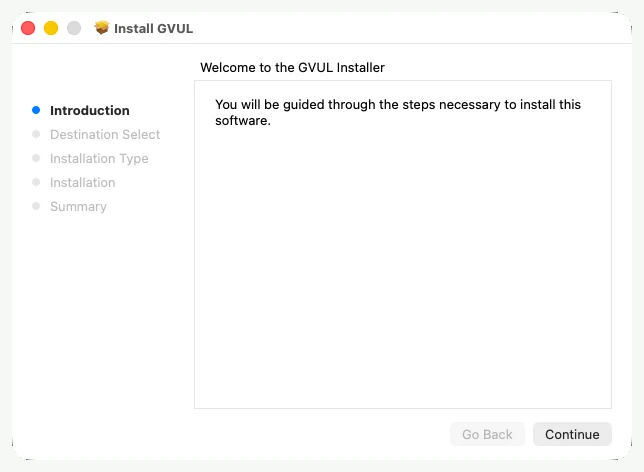
Beta members get GVUL.pkg from us. Double-click it.
Press Continue, then Install, then type your Mac password.
If your Mac says it can't check GVUL
The beta isn't signed by Apple yet, so macOS may stop it the first time. That's expected.
- Press Done on Apple's message.
- Open System Settings, then Privacy & Security.
- Scroll down and press Open Anyway next to GVUL.
- Press Open Anyway again and type your password.
Approve GVUL once
System Settings asks you to approve GVUL. It takes a few presses and your password.
This is what lets GVUL stay on.
- In System Settings, double-click the GVUL item.
- Press Install, then Install again.
- Type your password and press Allow.
GVUL sets itself up
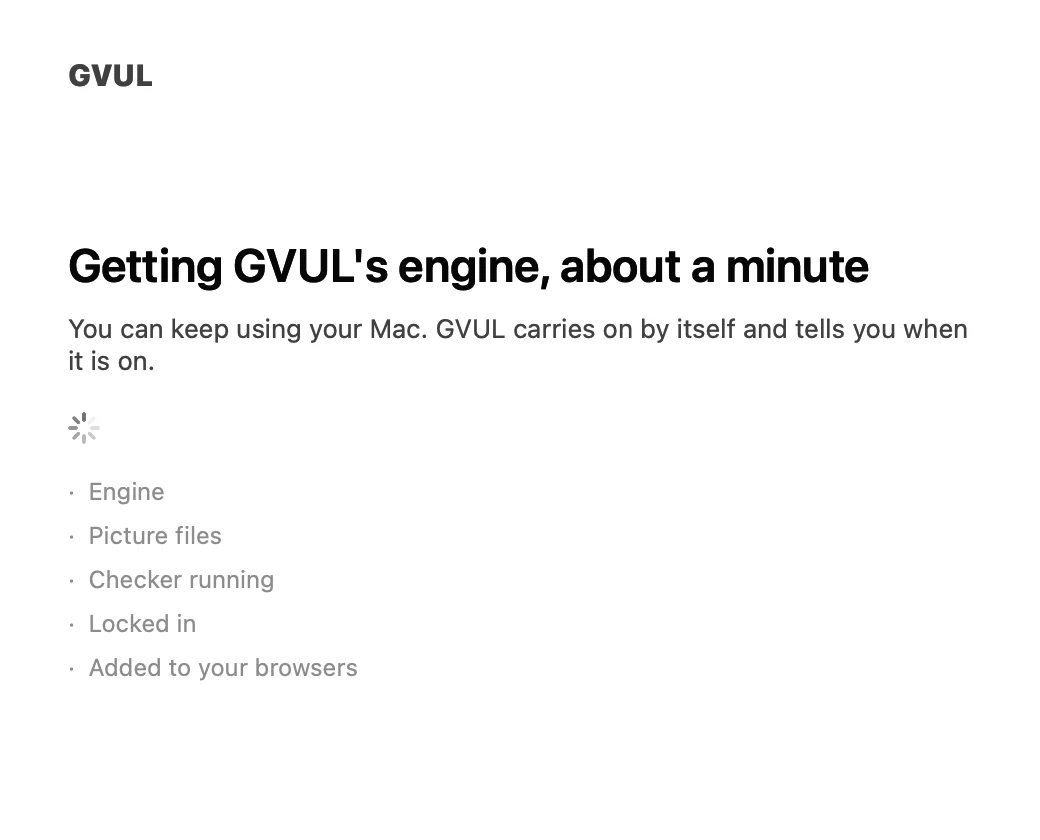
It gets its engine and picture files, starts checking, and adds itself to Safari and Chrome. You can keep using your Mac.
On our clean test Mac this took under two minutes.
Browse
When the window says GVUL is on, you're done. Pictures are checked as pages load, in Safari and Chrome.
Other people who log in to this Mac get one short window from GVUL the first time, asking them to turn GVUL on in Safari.
Something not right?
Tell us what you see on the feedback page. A screenshot of the window helps.